Quick guide on how to format text in Telegram
Select your text, choose "Format" and apply a style from the built-in menu. On desktop, keyboard shortcuts handle the basics. Markdown-style symbols can work but are not consistent across all clients.
60-second checklist
- Method A - most reliable. Type text, select it, open the formatting menu, choose a style, send.
- Method B - fastest on desktop. Use keyboard shortcuts like Ctrl or Cmd + B/I/U for bold, italic, underline.
- Method C - portable. Use Markdown-like symbols such as
**bold**or backticks for code where supported.
| Style | What it does | Menu path | Markdown symbols | Shortcut (Win/Linux) | Shortcut (Mac) |
|---|---|---|---|---|---|
| Bold | Thicker emphasis | Formatting → Bold | **bold** |
Ctrl + B | Cmd + B |
| Italic | Slanted emphasis | Formatting → Italic | __italic__ (double underscore) |
Ctrl + I | Cmd + I |
| Underline | Line under text | Formatting → Underline | unknown | Ctrl + U | Cmd + U |
| Strikethrough | Line through text | Formatting → Strikethrough | ~~text~~ (double tilde) |
Ctrl + Shift + X | Cmd + Shift + X |
| Spoiler | Hidden until tapped | Formatting → Spoiler | ||text|| (double vertical bars) |
Ctrl + Shift + P | Cmd + Shift + P |
| Inline code | Monospace snippet | Formatting → Monospace | `code` (single backtick) |
Ctrl + Shift + M | Cmd + Shift + M |
| Code block | Preformatted multi-line | Formatting → Code (only mobile) | ``` on separate lines |
No shortcut | No shortcut |
| Quote | Indented block | Formatting → Quote | unknown | Ctrl + Shift + . | Cmd + Shift + . |
| Hyperlink | Clickable anchor text | Formatting → Create Link | unknown | Ctrl + K | Cmd + K |
| Date | Clickable date | Formatting → Date | unknown | Ctrl + Shift + D | Cmd + Shift + D |
What Telegram text formatting supports and where it works
Telegram supports bold, italic, underline, and strikethrough as core emphasis styles, plus spoiler, inline monospace/code, code block, quote, date and embedded hyperlinks. This covers the practical styling needs for channel posts.
On June 13, 2026, Pavel Durov pointed to Telegram’s continued work on richer message presentation and text-related features (headings, lists, tables, media, block quotations, collapsible blocks, footnotes, and formulas). For channel owners, this means formatting support should be treated as client-dependent: new options may appear first in the native formatting menu and roll out unevenly across iOS, Android, Desktop, and Web. Before publishing an important channel post, test the final layout in a private chat or draft channel.
Where formatting applies:
- Channels. Body text and, often, media captions. Captions may have stricter limits depending on client.
- Groups and DMs. All core styles work for messages and replies; quoting is common.
- Forwarding and copy-paste. Formatting can be preserved or partially stripped depending on source and client.
| Surface | Bold | Italic | Underline | Strike | Spoiler | Code | Quote | Link |
|---|---|---|---|---|---|---|---|---|
| Channel post | Yes | Yes | Yes | Yes | Yes* | Yes | Yes | Yes |
| Channel comments | Yes | Yes | Partial | Partial | Yes* | Yes | Partial | Yes |
| Group chat | Yes | Yes | Yes | Yes | Yes* | Yes | Yes | Yes |
| DM | Yes | Yes | Yes | Yes | Yes* | Yes | Yes | Yes |
| Media caption | Partial | Partial | Partial | Partial | Partial* | Partial | No/Partial | Yes |
| Bio/About | Partial | Partial | No | No | No | No | No | Partial |
*Spoiler behavior depends on client and version. If it fails, apply via menu and test.
Limits and quirks: what "Partial" means
Captions: Media captions (photos, videos, albums) support most styles, but character limits are stricter than regular posts. If formatting doesn't persist after paste, use "Paste as plain text" and reapply styles inside Telegram. Test this now: send a caption with bold and a link in your channel's test chat.
Bio/About: Channel or user bios strip most formatting. Bold and italic may render in some clients, but underline, code, and spoiler are typically removed. Keep bio text plain and move emphasis to pinned posts.
Comments: Channel comment threads support core styles, but underline and quote can behave inconsistently. Stick to bold, italic, and links for reliability.
Forwarding and editing: When you forward a message, formatting usually carries over. However, if you edit a forwarded message, some clients may strip styles. Always preview edits in a private chat before publishing.
Copy/paste from external apps: Pasting from Word, Notion, or Google Docs often strips Telegram-specific entities. Paste as plain text, then format inside Telegram to avoid broken layouts.
Album captions: When posting multiple media as an album, only the first item's caption supports full formatting. Subsequent items may show plain text. Place your primary message and link in the first caption.
3 core ways to format text in Telegram
Method 1: Use the built-in formatting menu
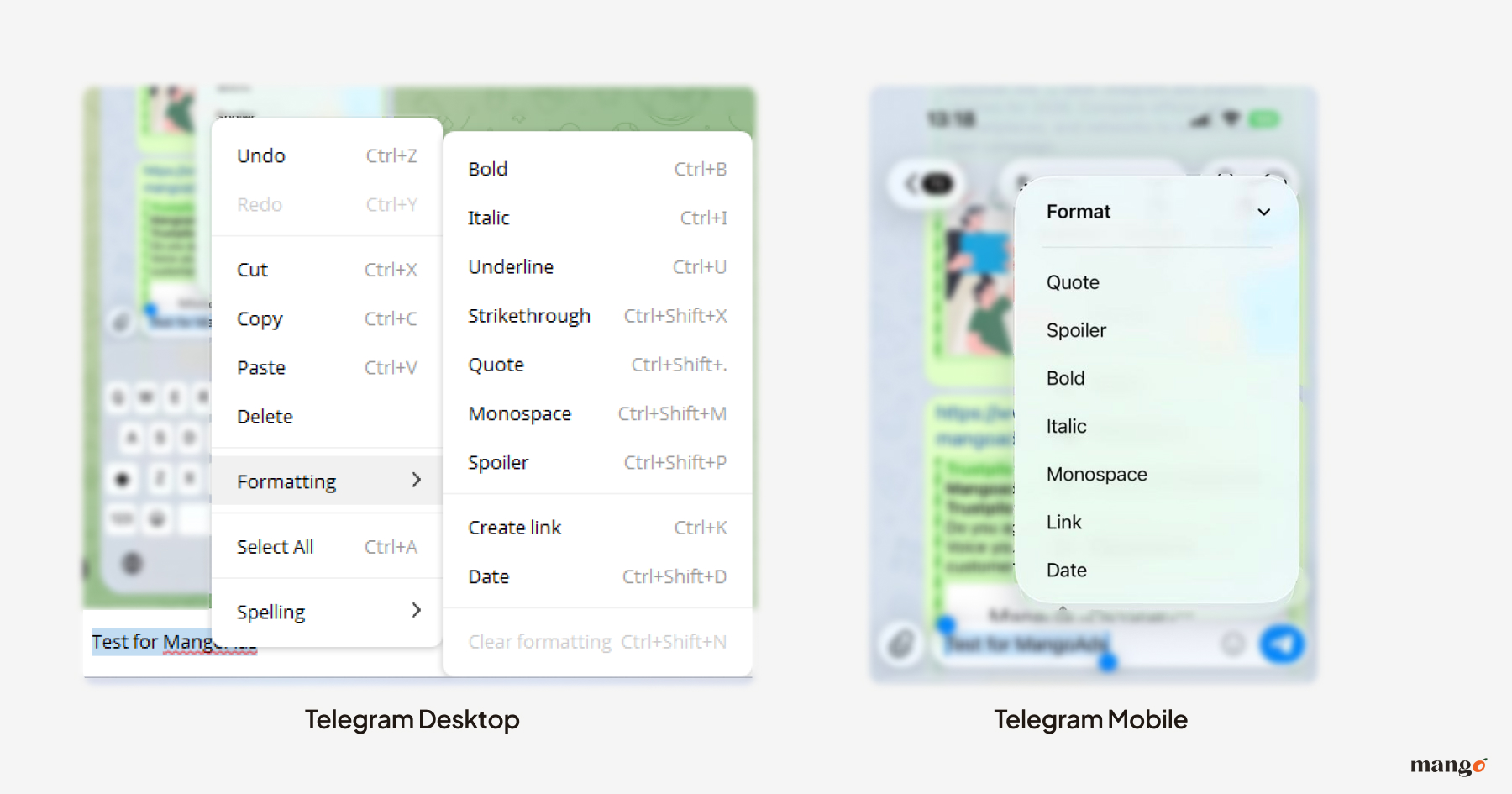
Select text and apply a style from the formatting menu. This is the most reliable method across all Telegram clients.
Desktop/Web
- Type your message.
- Highlight the words you want to style.
- Right-click or open the formatting panel.
- Choose type of formatting.
- Send the message or schedule the post.
Mobile
- Type your message.
- Tap-and-hold to select text, then adjust handles.
- Tap Format or the three-dot menu to see styles.
- Apply the style and send.
Method 2: Keyboard shortcuts
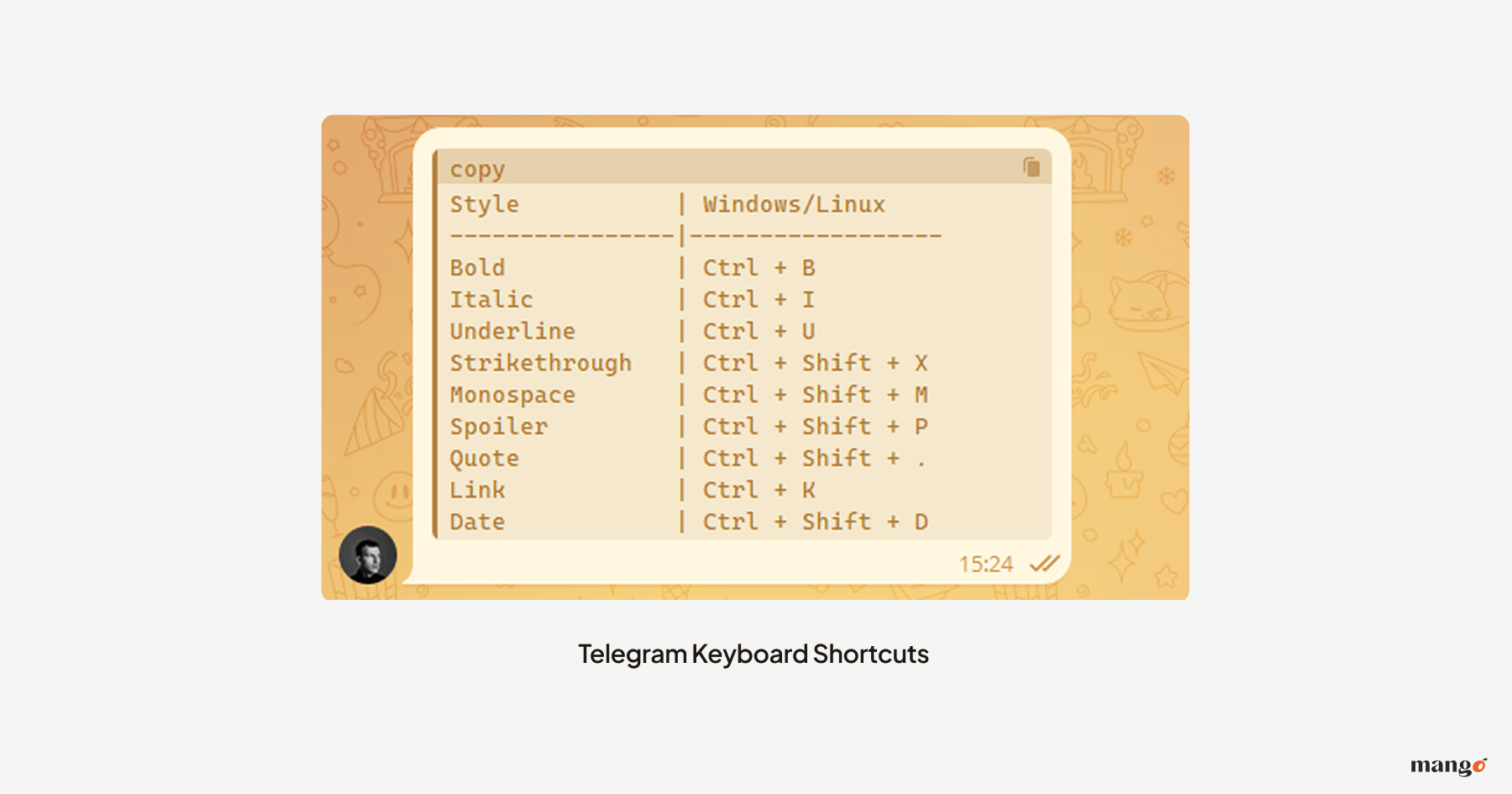
Use desktop shortcuts for speed on routine formatting. When a shortcut is missing or not working in your build, use the menu.
| Style | Windows/Linux | macOS |
|---|---|---|
| Bold | Ctrl + B | Cmd + B |
| Italic | Ctrl + I | Cmd + I |
| Underline | Ctrl + U | Cmd + U |
| Strikethrough | Ctrl + Shift + X | Cmd + Shift + X |
| Monospace | Ctrl + Shift + M | Cmd + Shift + M |
| Spoiler | Ctrl + Shift + P | Cmd + Shift + P |
| Quote | Ctrl + Shift + . | Cmd + Shift + . |
| Link | Ctrl + K | Cmd + K |
| Date | Ctrl + Shift + D | Ctrl + Shift + D |
Testing note. Shortcuts were validated on typical Telegram Desktop builds used by our team. Clients can change behavior with updates. If a shortcut fails, fall back to the menu.
Method 3: Markdown-style symbols (great for templates)
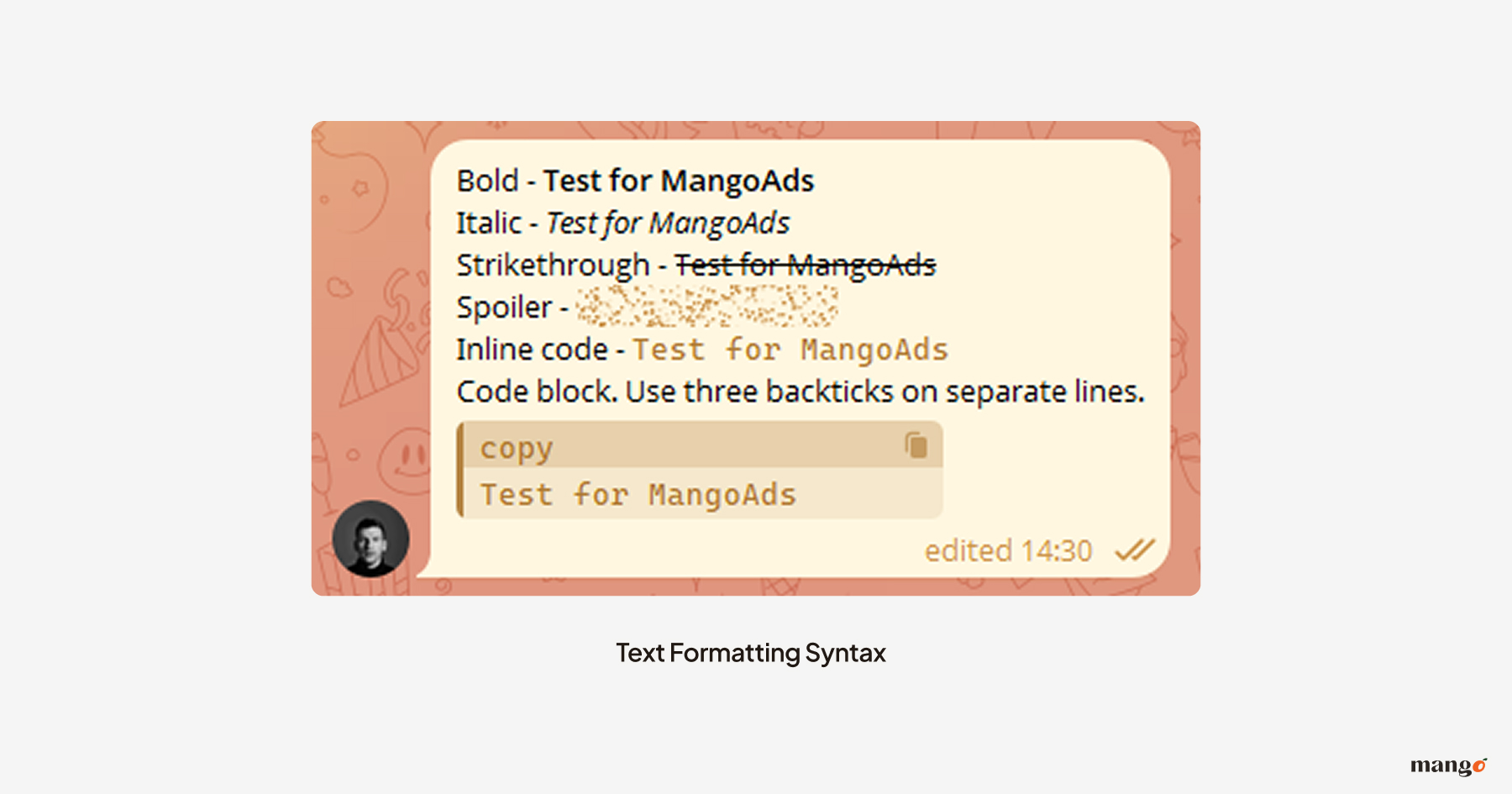
Markdown-like symbols can format text wherever the client supports parsing. If parsing fails, apply styles using the menu.
Supported markdown syntax
- Bold -
**bold** - Italic -
__italic__ - Strikethrough -
~~text~~ - Spoiler -
||text|| - Inline code -
`code` - Code block. Use three backticks on separate lines.
```
code
```
Telegram clients differ in Markdown parsing.
Markdown rules that prevent errors
- Always close tags. Don't:
**bold→ Do:**bold** - No spaces touching tags. Don't:
__ text__→ Do:__text__ - Markdown styles cannot be combined. You cannot write
__**bold italic**__; only “external” styles can be applied and you wil see**bold italic**
Full list of Telegram text styles
Bold
Use bold for key takeaways, CTAs, and offer highlights. It should point attention, not shout.
| Menu steps | Markdown | Shortcut | Common mistake |
|---|---|---|---|
| Select → Formatting → Bold | **bold** |
Win: Ctrl+B, Mac: Cmd+B | Overusing across whole paragraph |
Copy-ready example: Input: **New update today** Output: New update today
Italic
Use italics for nuance, tone markers, definitions, and disclaimers.
| Menu steps | Markdown | Shortcut |
|---|---|---|
| Select → Formatting → Italic | __italic__ |
Win: Ctrl+I, Mac: Cmd+I |
Copy-ready example: Input: __One-line summary here__ Output: One-line summary here
Underline
Use underline sparingly. It often feels like a link to readers.
| Menu steps | Markdown | Shortcut |
|---|---|---|
| Select → Formatting → Underline | none | Win: Ctrl+U, Mac: Cmd+U |
Underline vs link confusion
Example 1 - Underline as emphasis: This is important today.
Example 2 - Link clarity: Read the full update.
Strikethrough
Use strikethrough to show changes, like old price to new price, or to correct errors without deleting context.
| Menu Steps | Markdown | Shortcut |
|---|---|---|
| Select → Formatting → Strikethrough | ~~text~~ |
Win: Ctrl+Shift+X Mac: Cmd+Shift+x |
Copy-ready example: Input: Old price ~~$29~~ → New price $19 Output: Old price $29 → New price $19
Spoiler (hidden text)
Spoiler hides selected text until tapped or clicked. Ideal for quizzes, punchlines, or sensitive info.
| Menu Steps | Markdown | Shortcut |
|---|---|---|
| Select → Formatting → Spoiler | ||text|| |
Win: Ctrl+Shift+P Mac: Cmd+Shift+P |
Tip. Use spoiler for the answer line in community quizzes. Engagement rises because people want to reveal it. Keep the rest of the message clean.
"Spoiler text is ideal for conversations about movies, books, or games… Spoilers are also widely used in Telegram game communities and business webinars, where hidden answers or promo codes are revealed on demand."
Monospace / Inline code
Inline code is best for commands, short code, file names, tokens, coupon codes, and UTM tags.
| Menu Steps | Markdown | Shortcut |
|---|---|---|
| Select → Formatting → MonoSpace | `code` |
Win: Ctrl+Shift+M Mac: Cmd+Shift+M |
Usage examples:
/startcommand in onboarding- Filename
invoice_2026_Q1.pdf - Coupon
SPRING-20 - UTM tag
utm_source=telegram - Short token
api_key_1234 - Path
/settings/notifications
Code block (preformatted)
Use a code block for multiple lines of code, logs, or configuration. Add a one-line context before the block so people know what they see.
| Menu Steps | Markdown | Shortcut |
|---|---|---|
| Select → Formatting → Code (only mobile) | ``` |
No shortcut |
Best practices for readable code posts:
- Keep lines short to avoid horizontal scrolling.
- Add a one-line label above each block.
- Split long code into sections.
- Use monospace only for code, not for whole explanations.
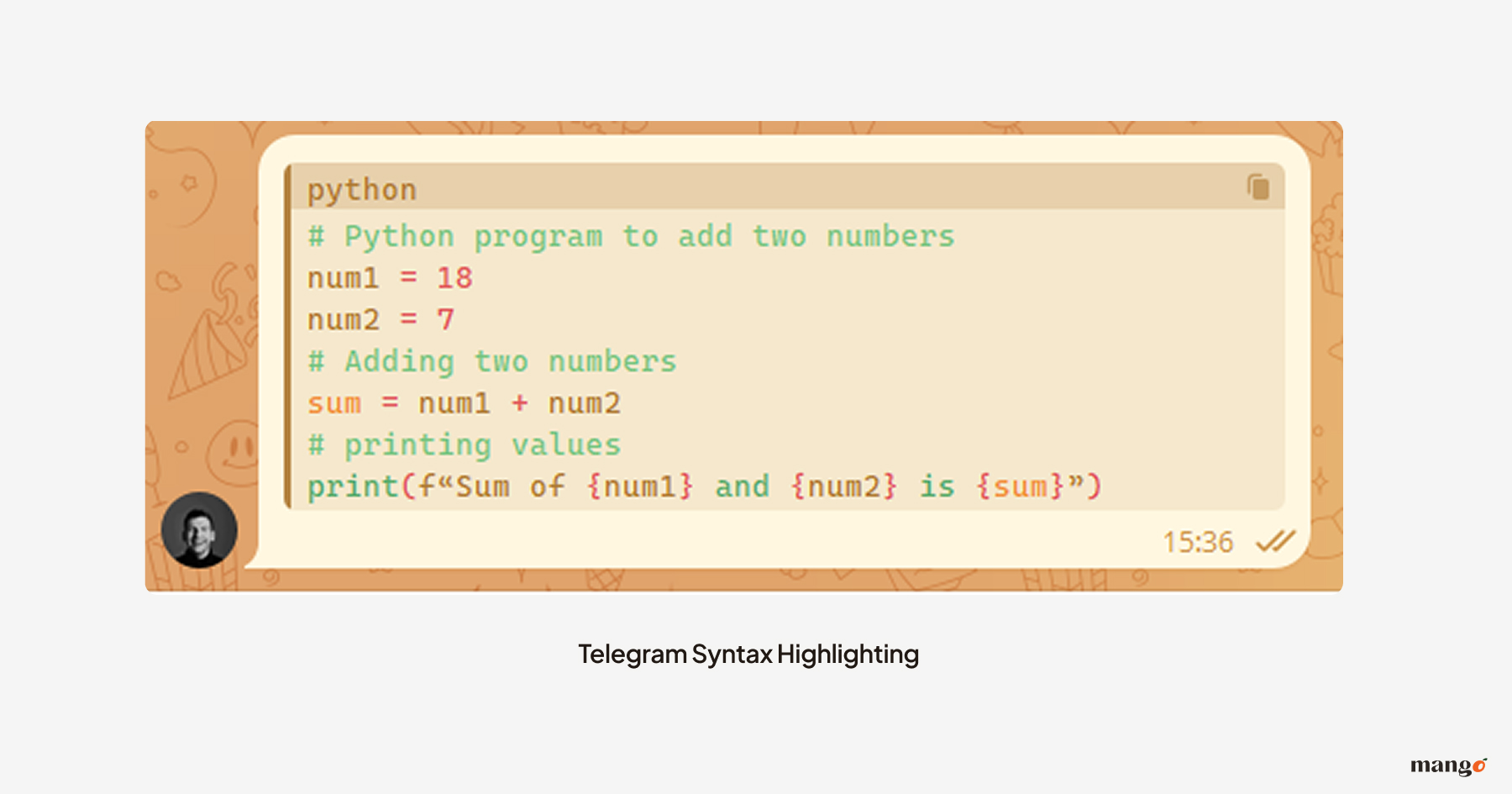
"If you need syntax highlighting, preface the block with context since Telegram focuses on layout, not language detection. You can specify the language using"
```python
Some python code
```
Quote / Blockquote
Quotes create a visual break and can add credibility when used for testimonials or excerpts. Attribute the source.
| Menu Steps | Markdown | Shortcut |
|---|---|---|
| Select → Formatting → Quote | none | Ctrl + Shift + . |
When to use quotes in channels:
- Social proof. Real customer testimonials with a name and context.
- Research snippets. Short excerpt with a clear link to the primary source.
- Key idea callouts. A sentence that frames your post.
Citation guidance. If you quote studies or people, link the primary source and date. Avoid unattributed quotes.
Hyperlinks (embedded links)
Embedded links keep your message clean and readable. Use the link insertion UI for reliability. Markdown-style links can fail to parse on some clients.
| Menu Steps | Markdown | Shortcut |
|---|---|---|
| Select → Formatting → Create link | none | Ctrl + K |
Managing link previews for better CTR
Keep previews when the thumbnail adds trust or context. Remove them for multi-link posts or when the thumbnail misleads.
Where to toggle link previews:
- Desktop: After inserting a link, click the preview thumbnail and select "Remove preview."
- WebK/WebZ: Insert link → click preview card → "Remove preview" option.
- Android & iOS: Insert link → tap preview card → "Remove preview."
| Scenario | Recommendation | Test this now |
|---|---|---|
| Breaking news link | Keep preview | Send a news link in a test chat; check if thumbnail builds trust |
| Product page with strong image | Keep preview | Send a product link; verify image clarity on mobile |
| Promo landing with clear CTA | Keep or remove - test both | A/B test: send one post with preview, one without; compare CTR |
| Multi-link roundup | Remove previews | Send 3+ links; remove all previews for compact scanning |
| Threaded announcement with several links | Remove previews | Send a multi-link update; remove previews to reduce clutter |
| Thumbnail is outdated or misleading | Remove preview | Send a link with a bad thumbnail; remove and check readability |
Footnotes:
- Captions: If you add a link in a media caption, the preview toggle may not appear. Test by sending the link in the message body first.
- Bio: Links in bios rarely show previews; keep them plain.
- Comments: Preview behavior in channel comments can vary; test before posting.
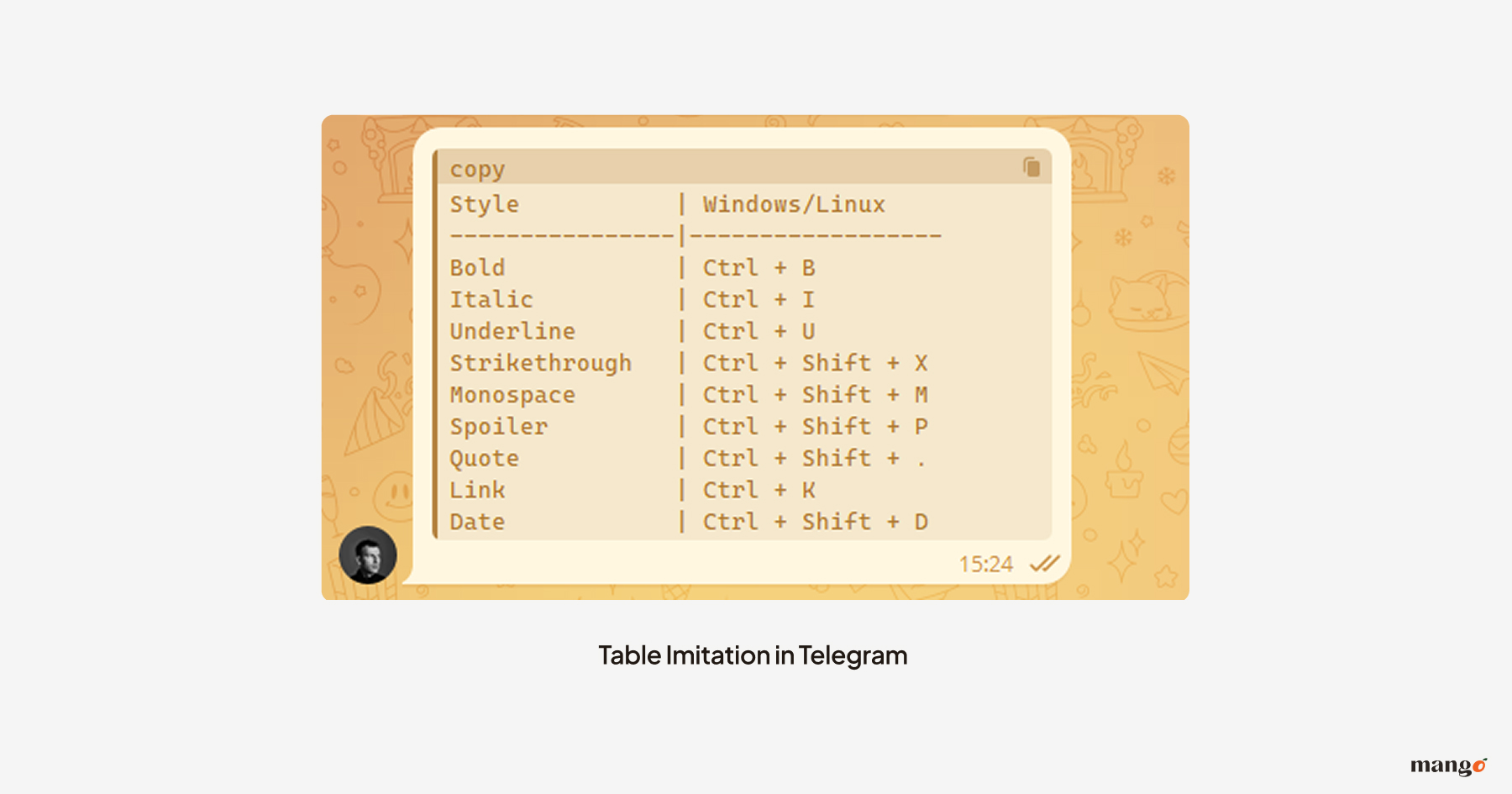
Tables for Telegram lifehack
Since Telegram doesn't have native table support, the best way to present structured data is by using monospaced code blocks. This ensures your columns stay perfectly aligned across all devices, creating a clean, professional look for your lists and schedules.
Example (copy and paste it to telegram):
```
Style           | Windows/Linux
----------------|------------------
Bold            | Ctrl + B
Italic          | Ctrl + I
Underline       | Ctrl + U
Strikethrough   | Ctrl + Shift + X
Monospace       | Ctrl + Shift + M
Spoiler         | Ctrl + Shift + P
Quote           | Ctrl + Shift + .
Link            | Ctrl + K
Date            | Ctrl + Shift + D
```
Sources & verification notes
Editors should verify details against the following primary references before publication:
- Telegram Bot API documentation - confirms the list of supported entities for developers.
- Telegram Desktop release notes - confirms shortcut or UI changes across versions.
- Telegram client latest versions - confirms menu locations and parsing differences.
Verification log:
- Devices and clients tested by the author: Telegram Desktop v6.x; WebK / WebA; Telegram for Android v12.x; Telegram for iOS v12.x
- Date of last practical verification: 2026-04-10.
- Corrections. If you spot a mismatch with your client version, send details to the editorial contact so we can update this page.